

Placing orders online is easy and convenient.
Follow the steps below to add items to your cart and checkout:
1. First, find the product you would like to order by navigating to the product category you are interested in. Here you will see a list of all the products in that category. Once you have identified which items you would like to buy, click on the "+" or "-" button on the product line and click the "Add to Cart" button for the quantity to be added to your cart. You can also type in, in the text box provided how many items you would like to order. Your cart, in the top right of your screen, will update automatically when you add or remove items.
2. Once you have added all the items that you want to your cart, click on the “Cart” icon on the top right of your screen. This will open your shopping cart and display all the products you have added to your cart. You can still add or reduce the quantities in your cart here as well.
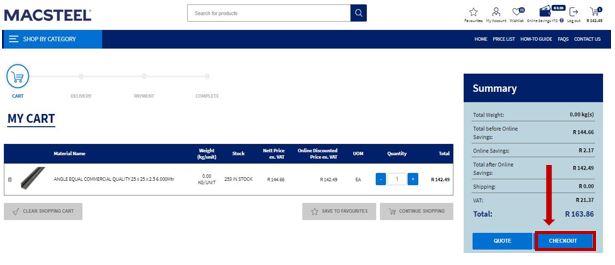
3. Once happy with the items listed in your cart, you are ready to checkout. Click on the "Checkout" button to continue placing your order.
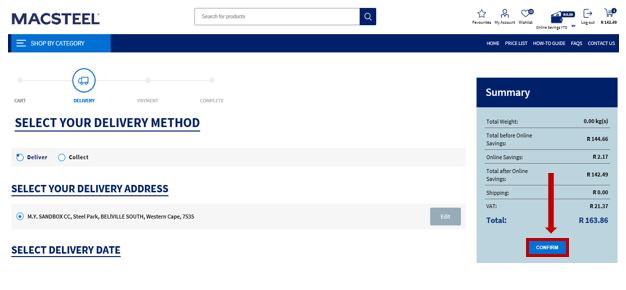
4. On the next page, select your delivery method (delivery or collect) and enter any special instructions you have for your order. If you would like your order to delivered to an address different to your approved default delivery address, you can edit your delivery address on this checkout page. If you are an account customer, find out more on how to do this by reading this how-to article: https://shop.macsteel.co.za/6how-to-edit-your-delivery-address.
Once all your details are correct, click on the "confirm" button to continue placing your order.

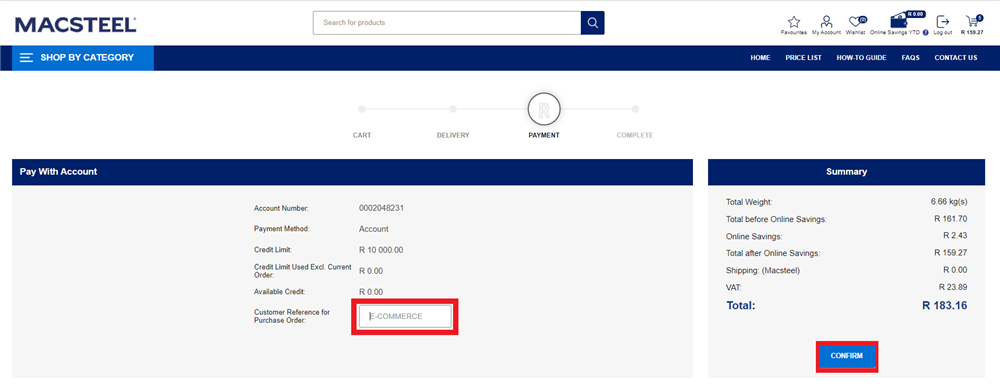
5. On the payment screen, you need to enter your Customer Reference Number. As this field is required, if you do not have an official purchase order number from your company, you can enter any text here as a placeholder. Click on "CONFIRM" to place your order.
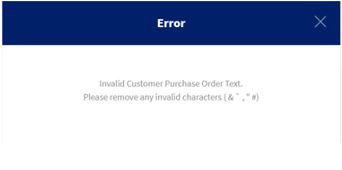
Please note that you should not use any special characters in your purchase order number, such as & ` , " or #, as this will provide an error and ask you to change your entry.
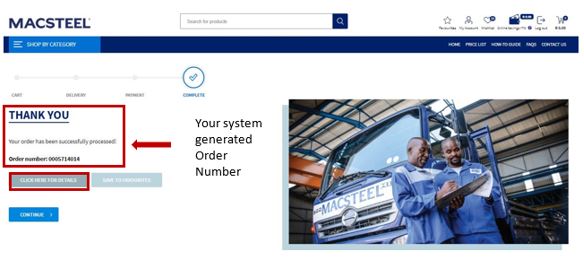
6. Your order has been successfully placed. You can view your order’s details by clicking “Click Here for Details”, where you can also download your order details.





 Comalytics
